


Hey, Luca here — the wait is over! After teasing it during the last month, today I am making Tolaria available to everyone, free and open source. You can find it here and download the latest release.
What is Tolaria?
Tolaria is a desktop app for Mac for managing markdown knowledge bases. In a way, it’s my own version of Karpathy’s LLM wiki.
I have a close circle of friends who have been using it over the past few weeks, and they use it to operate:
Second brains and personal knowledge
Company docs as context for AI
OpenClaw / assistants memory and procedures
Personally, I use it to run my life and work.
I have a massive workspace of 10,000+ notes, which are the result of 6 years of Refactoring work + a ton of personal journaling and second braining.
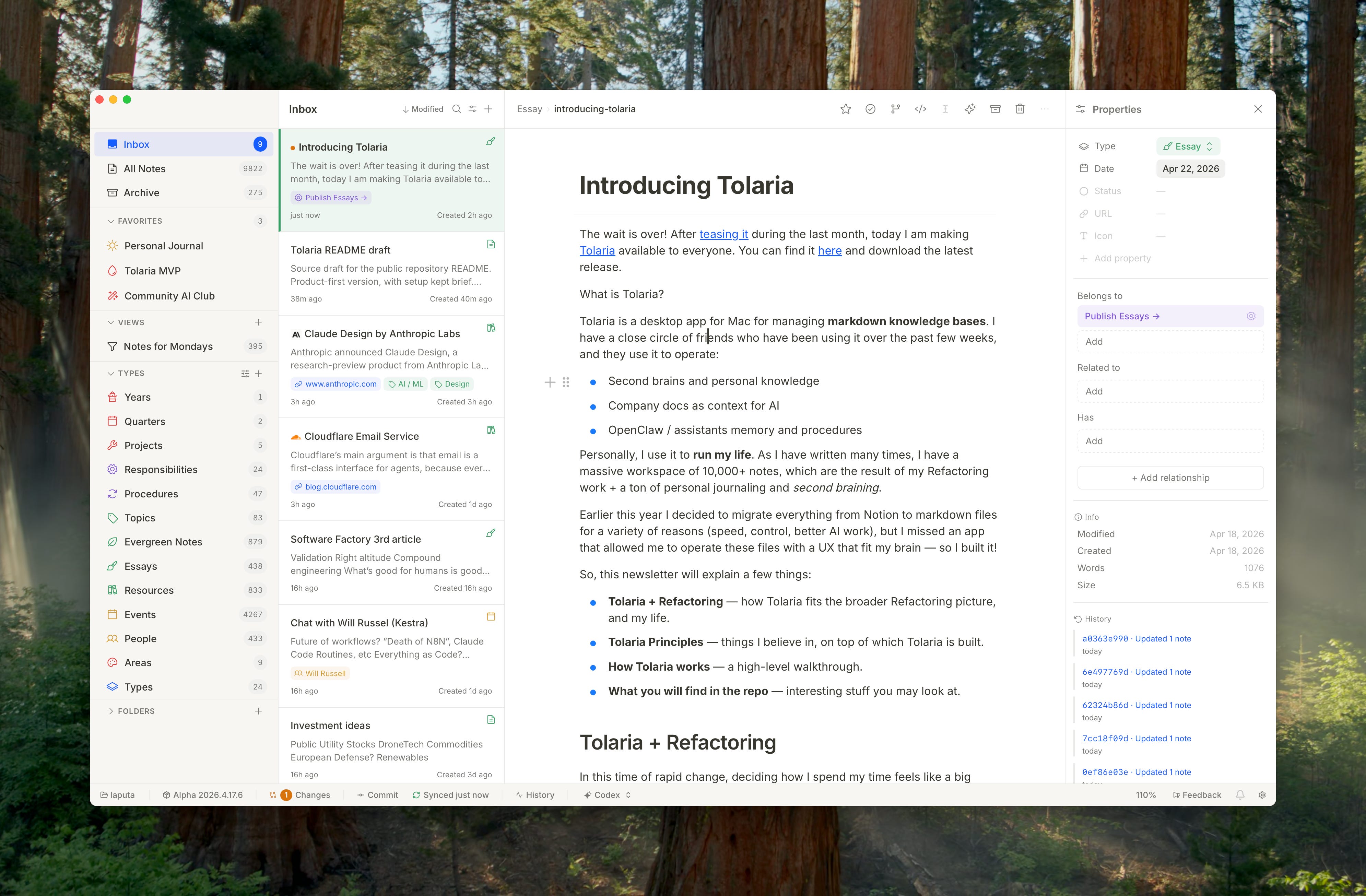
Earlier this year I decided to migrate everything from Notion to markdown files for a variety of reasons (speed, control, better AI work), but I missed an app that allowed me to operate these files with a UX that fit my brain — so I built it!
So, this newsletter will explain a few things:
📹 Walkthroughs — how I use Tolaria for various stuff.
🌀 Tolaria + Refactoring — how Tolaria fits the broader Refactoring picture, and my life.
⭐ Tolaria Principles — things I believe in, on top of which Tolaria is built.
🔧 How Tolaria works — the main parts.
🔬 What you will find in the repo — interesting stuff you may look at.
Also, as I wrote before, I commit to keeping you posted about my AI coding workflow, and I will use Tolaria and its repo as a living artifact of how I create software with AI, trying to staying on the frontier of what’s possible, trying new things, and so on.
Tolaria will stay free forever, but if you want to stay posted with these explorations and support my work, consider subscribing to the paid version of Refactoring 👇
p.s. we’ve recently launched our AI Club and will run the first edition next month. I’d love to see you there!
📹 Walkthroughs
Before you move further, you can find some Loom walkthroughs below — they are short and to the point:
I recorded them because I think it’s way easier to see things in action than to read long explainers. So if you like what you see, you can continue reading below 👇
🌀 Tolaria + Refactoring
In this time of rapid change, deciding how I spend my time feels like a big deal. Tolaria is taking a lot of it, so it needs to be worth it, and I think it is.
With Refactoring I write about how to create good software — that’s how I literally make a living. Over the last few years I have done that largely by 1) doing research and 2) talking with the smartest people I knew.
With everything that’s happening with AI, this is not enough anymore.
Everyone needs hands-on work to understand what’s really happening, and form opinions that are not mediated by other people’s experience.
Also, in order to make for good evidence, such work needs to be ambitious. Side projects are nice, but can we build real, complex software with AI, without writing a single line of code? What about without reading it? Does it scale? Or do we drift into chaos?
So far, it scales.
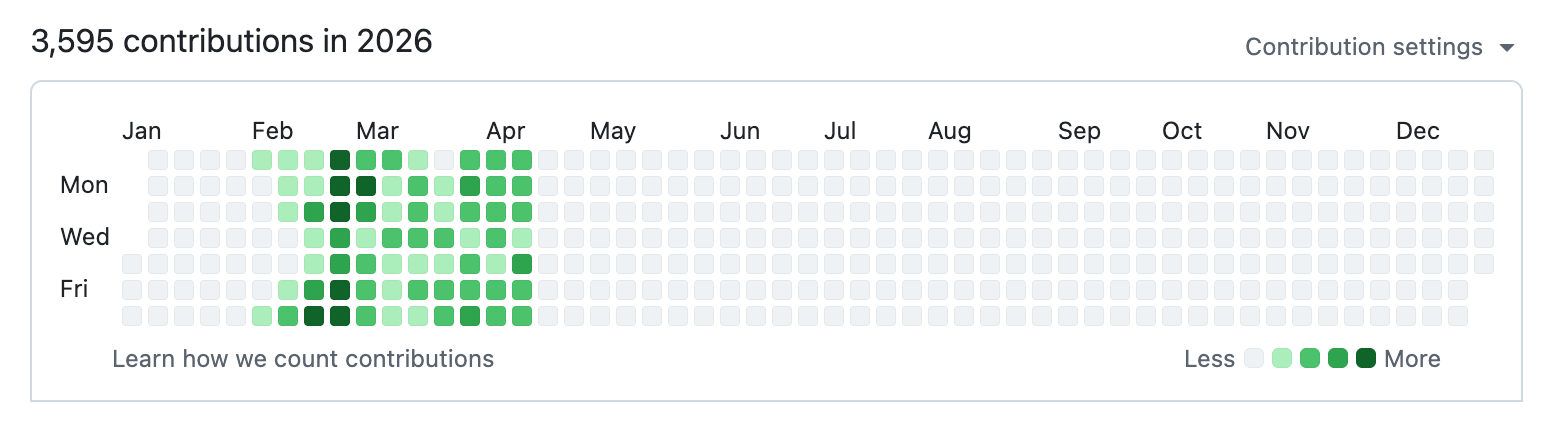
Tolaria is not massive, but at this point it is not small either. By the numbers:
100K lines of code, in Rust + React.
1900+ commits
3000+ tests
70 ADRs
I have written more about how I work on it in this recent piece.
So, my commitment with Tolaria is the following:
I will keep it free & open source forever.
I will run my life and business on it.
I will work 2+ hours / day on it to develop new things, fix problems, and make it useful for people other than myself.
I will do as much of the work as possible with AI, trying to live in the future.
I will keep you posted on Refactoring about this process.
In a nutshell, the goal is to work on the frontier and report back to you.
⭐ Principles
So, what is Tolaria about? When I speak with friends, jokingly I say that it’s like Notion, but offline, and for actual files. This is not 100% correct, but it’s a good starting point.
Tolaria is based on a simple belief: AI delivers the biggest benefits to those who are able to capture and organize context — whether it’s about their lives or work.
We often talk about “knowledge” management but it’s not only about knowledge: it’s about projects, goals, thoughts, relationships, and everything that happens in your lives. The more you can capture (and organize properly), the more AI can be useful to you.
Such material is, potentially, our most precious asset. We’ll want to keep it tidy, up to date, and most of all, under our control.
Keeping it under our control means not being locked into a specific tool or AI platform. It means being able to switch to different AIs by snapping your fingers, or using multiple ones together on the same collaboration surface.
You may want your Claude Code to do some autonomous research and write its findings, while your OpenClaw fetches your latest meeting notes and turns them into a doc, all while you write manually in your journal, or capture a valuable idea into an evergreen note.
This should all be possible and be backed by the same knowledge base.
Based on this, here is how I think such a knowledge base should work:
Files — because of 1) portability, 2) offline work, and 3) how AI is massively good at working with them, files are an obvious choice for a knowledge base.
Markdown — md has surfaced as the de-facto standard for documents in the AI era. And you can easily extend it with a YAML frontmatter to store structured properties
Git — by using files, version control is an obvious fit. This is useful for 1) history, for 2) cloud sync, and for 3) tracking authorship of changes, especially in a world where humans and AI collaborate.
Open source — if the goal is full & long-term portability, the app you use to operate your knowledge should stay under your control.
While the above items are the *core *principles, there are a few others I strongly believe in:
Rich UX — there are a lot of markdown editors out there who are simply… editors. This just doesn’t cut it when you have a lot of notes and need to operate years of content. You need relationships, visual cues, navigation, colors, icons, stuff that tells you at a glance what a note is, where it lives, and so on.
Keyboard-first — I am a developer at heart, so the more I can do via the keyboard, the better. In Tolaria there are shortcuts and commands for everything, and tab navigation works well, so you never need the mouse.
Opinions — capturing and organizing knowledge is hard, so I will bring my point of view about it. When you do something every day, you need UX that is optimized for that, and you can only achieve that if your tool has opinions. Tolaria has many!
🔧 How Tolaria works
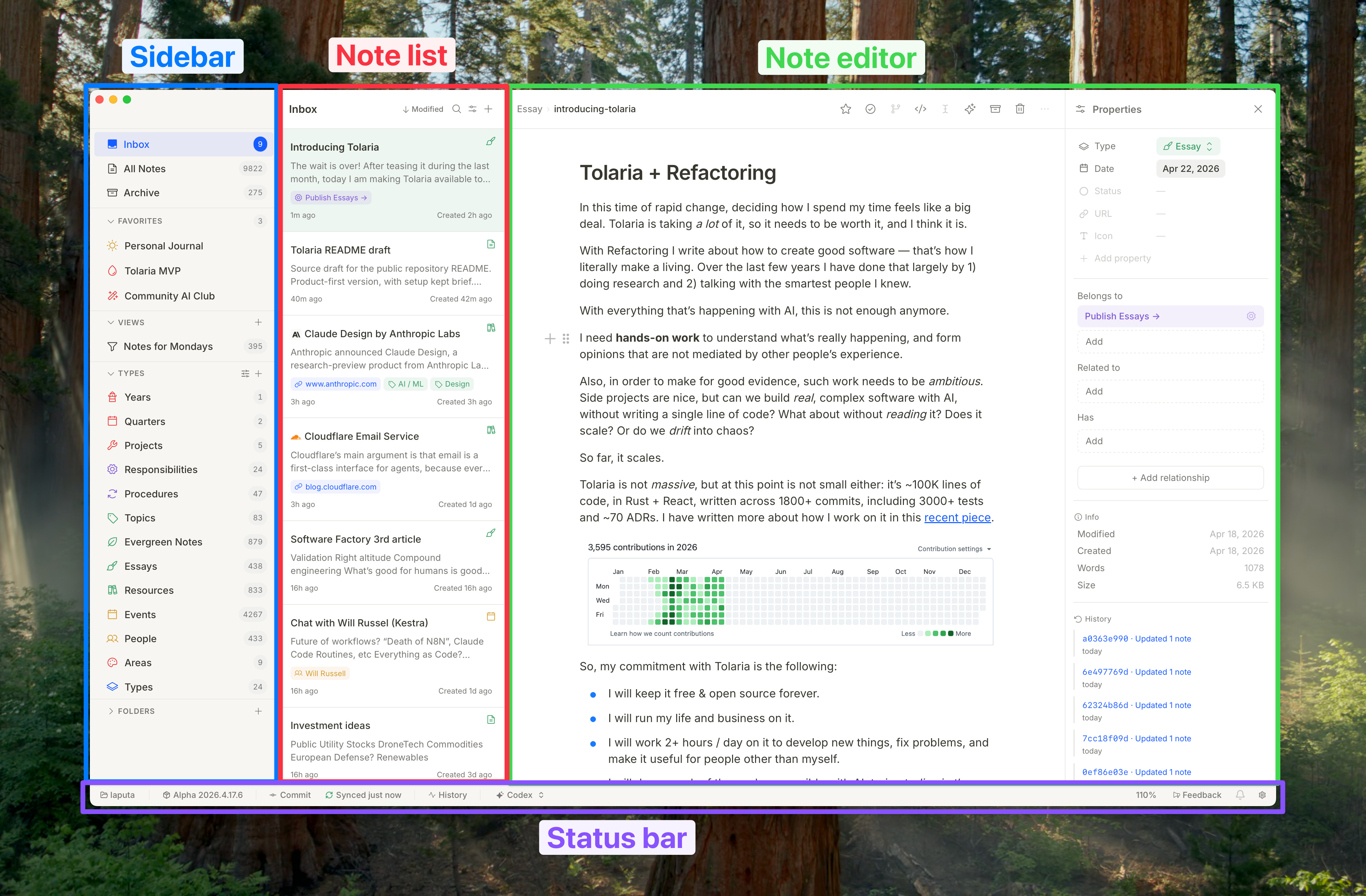
Tolaria is organized into a few main components:
Sidebar — for filtering notes in various ways
Note list — for displaying the list of notes that match the current selection in the sidebar
Editor — for editing the current note.
Status bar — for changing vault, check Git status, AI status, and handy stuff
Let’s look at each of these 👇
1) Sidebar
One of the core things you want to do when you have a lot of notes, is looking at just a subset of them at a time, based on various criteria.
Tolaria allows you to do so in many ways:
📥 Inbox
Notes that haven’t been organized yet.
This is inspired by Tiago Forte‘s concept of separating capture from organize. An “organized” note is a note that you know what you will do with. It may belong to a project, to a responsibility, a topic, or any concept related to how you organize work.
Review your inbox (e.g.) weekly to keep it from growing too large. You can disable the Inbox in Settings cmd+,) if you don’t like this workflow.
You can flag a note as organized by clicking on the “check” icon in the breadcrumbs bar, or with cmd+e.
🗃️ All Notes
As the name suggests, that’s the entire vault — every single note.
📦 Archive
A permanent home for notes you don’t want to delete but don’t want to see regularly. Archive aggressively to keep your vault clean. Archived notes still appear in search results, but not in sidebar sections.
🧩 Types
The main organizational device in Tolaria. Each note has a type, which by default is Note.
Each type can have its own icon and color, which you can change by right-clicking on it in the sidebar, or manually changing it in the properties or frontmatter of the type file.
Types are simply stored as markdown files, like Topic, or Project.
Click any type on the sidebar to see all notes of that type in the note list.
⭐ Favorites
Notes you’ve manually pinned to keep them top-of-mind. Great for active projects, journal entries, or reference notes you access frequently.
You can reorder them by dragging them in the sidebar.
Toggle a favorite note from the ⭐ button in the breadcrumbs bar, or with cmd+d .
🔍 Views
You can create custom views that filter notes by complex, nested criteria. The view editor fetches all available properties, plus allows for some tricks (like regexes and natural language dates)
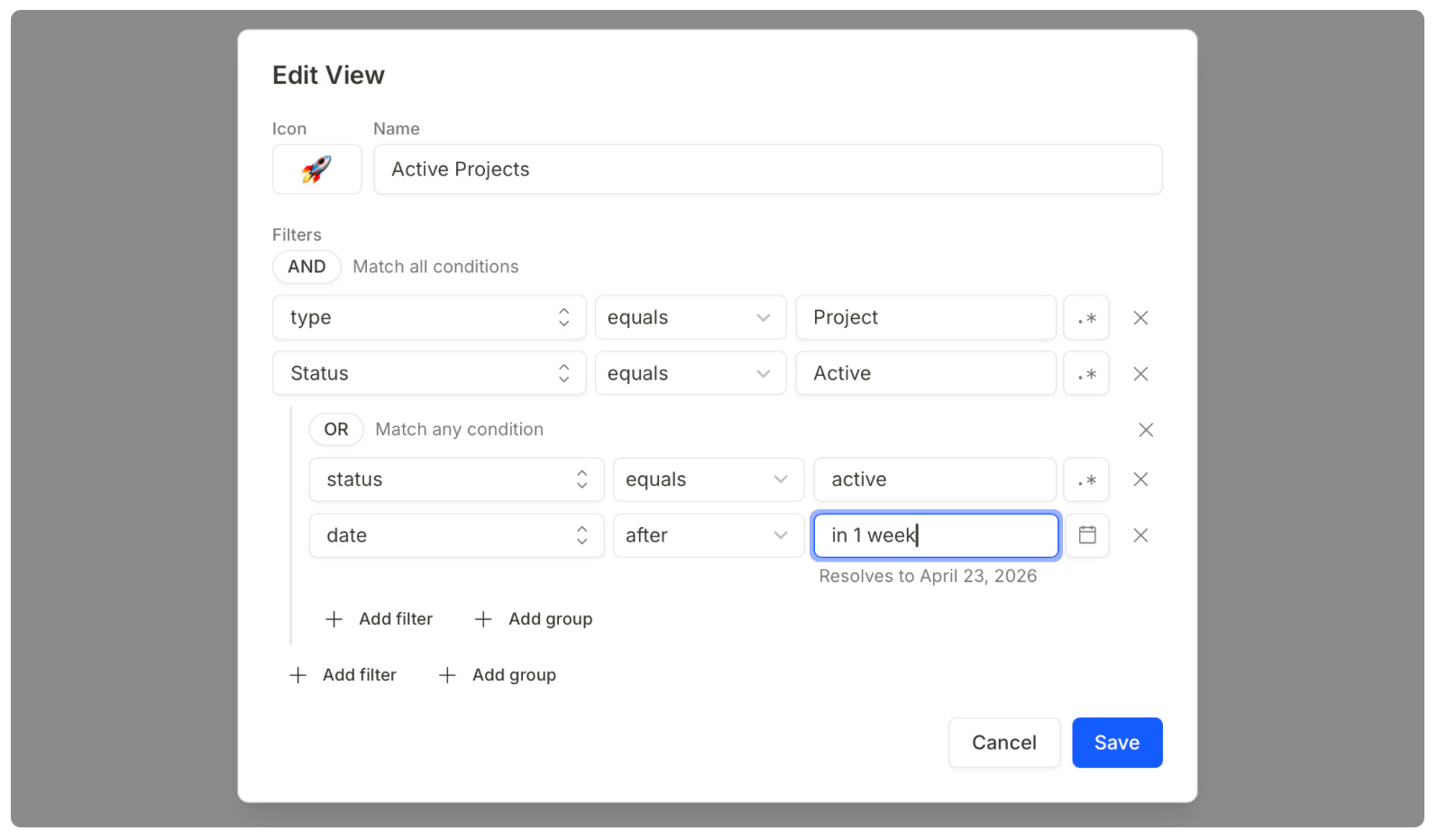
Views are simple yaml files that get stored in the views folder. They can be edited easily and even created by the AI 👇
name: Active Projects
icon: 🚀
filters:
  all:
  - field: type
    op: equals
    value: Project
  - field: Status
    op: equals
    value: Active
  - any:
    - field: status
      op: equals
      value: active
    - field: date
      op: after
      value: in 1 week
📂 Folders
Tolaria stores notes in the root of the vault by default, but also scans your vault’s folder structure, which you can navigate at the bottom of the sidebar.
Folders are listed last because they are a secondary organization method—not the primary one.
🗑️ Trash
There is no trash bin, when you delete a note, it’s gone — but your git history is your safety net. You can always recover deleted notes from git if needed.
2) Note list
The note list shows the subset of notes selected by the current sidebar section. For example, clicking “Types → Project” shows all your Project notes.
⬇️ Sorting
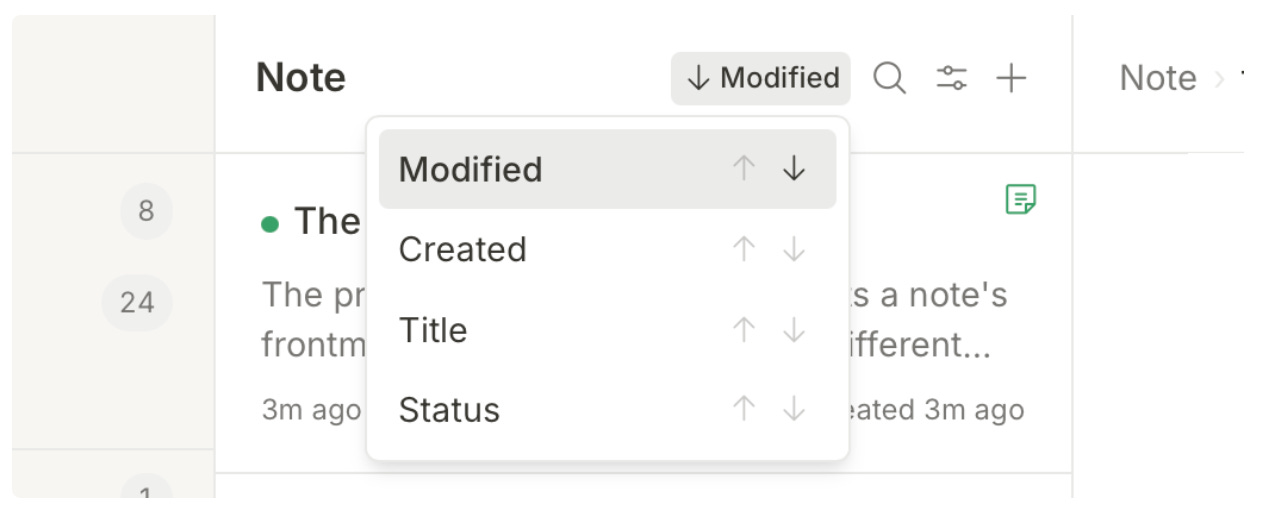
You can sort the note list by any note property (they get dynamically loaded from the notes), plus file properties like modified and creation time.
Your choice will be remembered for that specific section.
💅 Display Properties
You can customize which properties appear as columns in the note list. This lets you see important metadata at a glance without opening individual notes.
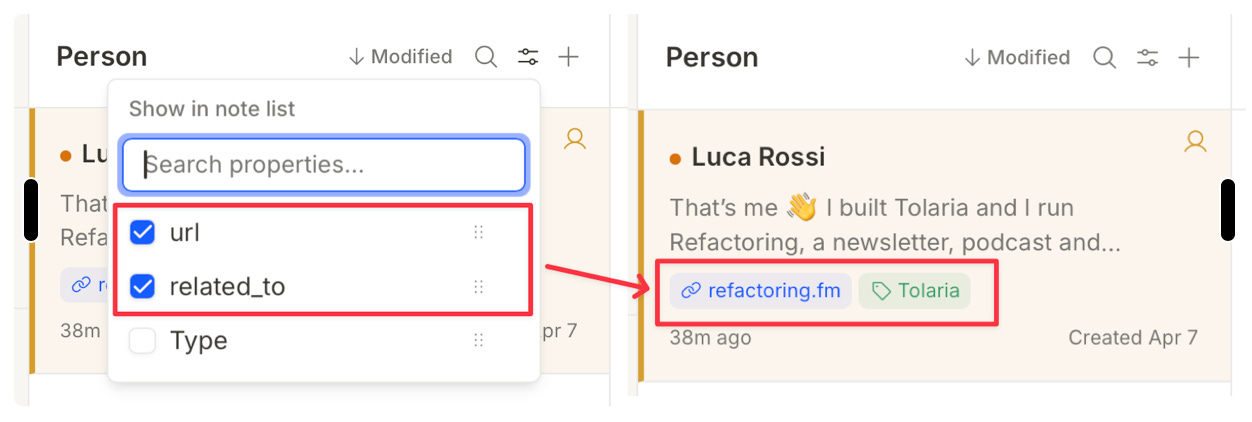
For properties that are URLs or other notes, you can open them directly from the note list with cmd+click.
3) Editor
The editor is where you write and edit your notes. Tolaria supports two modes:
WYSIWYG Mode — similar to Notion. Type naturally, use slash commands, and see the output directly formatted in the editor.
Raw mode — shows the actual file characters. Access it with
Cmd+/or the code button in the breadcrumb bar. Useful when you need precise control over markdown syntax.
The note’s filename is always visible at the top of the editor. This keeps you aware of how the note will be named and linked.
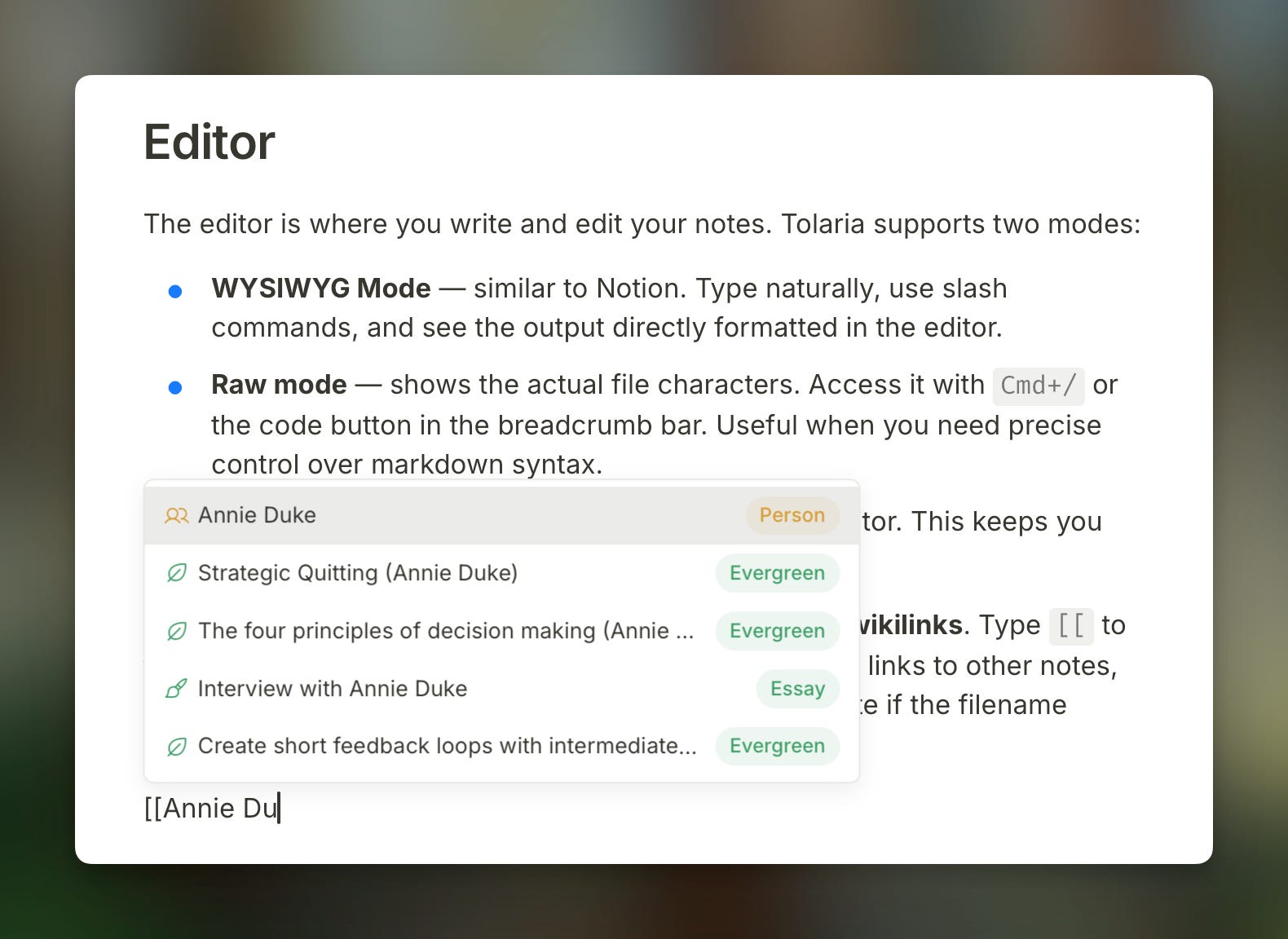
A very important feature of the editor is the support for wikilinks. Type [[ to trigger autocomplete from your entire vault. This creates links to other notes, enabling the knowledge graph. Wikilinks also auto-update if the filename changes.
4) Git
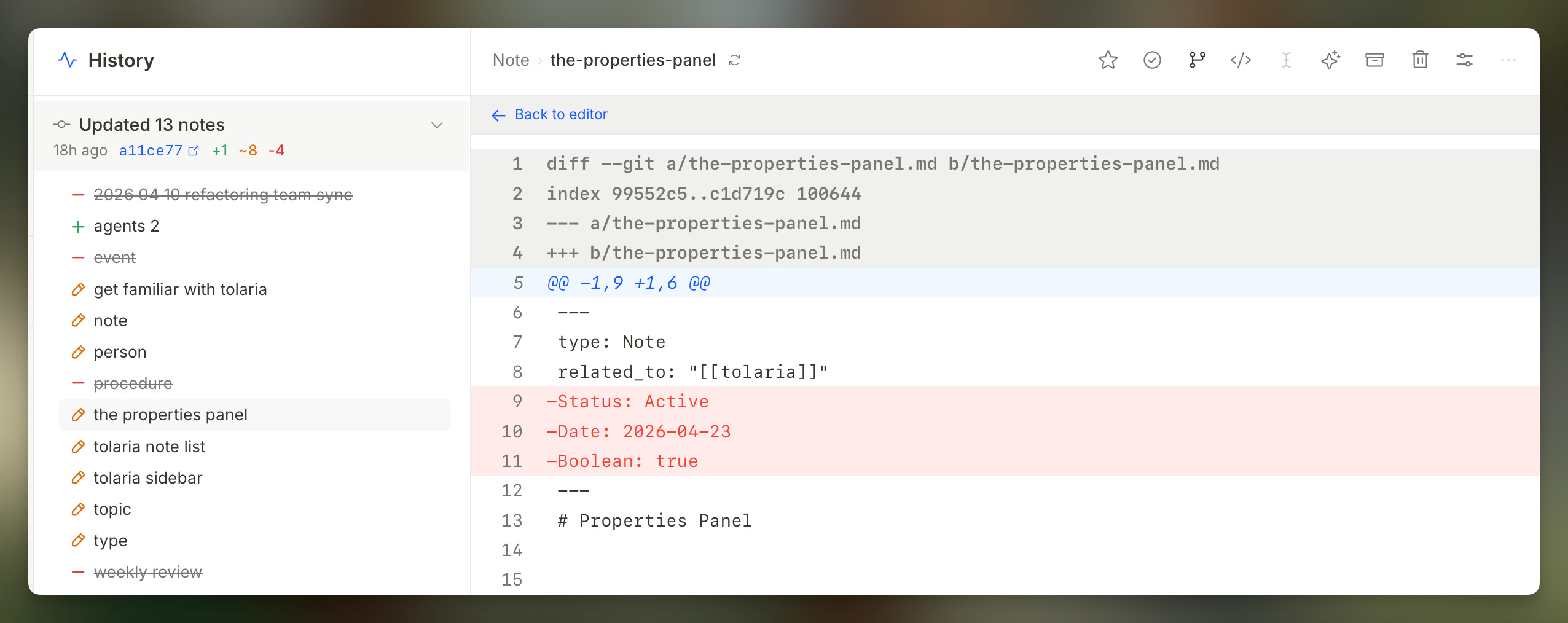
Tolaria vault have first-class Git support and by default you retain fine control over it.
You can look at current changes and Git history from the status bar, create new commits and push them directly without ever leaving the app.
But if you don’t want to manage this manually, and want to use Git as a simple automatic sync layer, Tolaria also has an opt-in AutoGit mode in which it automatically creates commits and pushes changes after some time. It does so when the app gets idle, when you shift which app is in focus, and based on various heuristics.
5) Commands
One of Tolaria’s principles is being keyboard-first. Almost everything has shortcuts.
You can discover shortcuts from the mac menu and from tooltips on buttons.
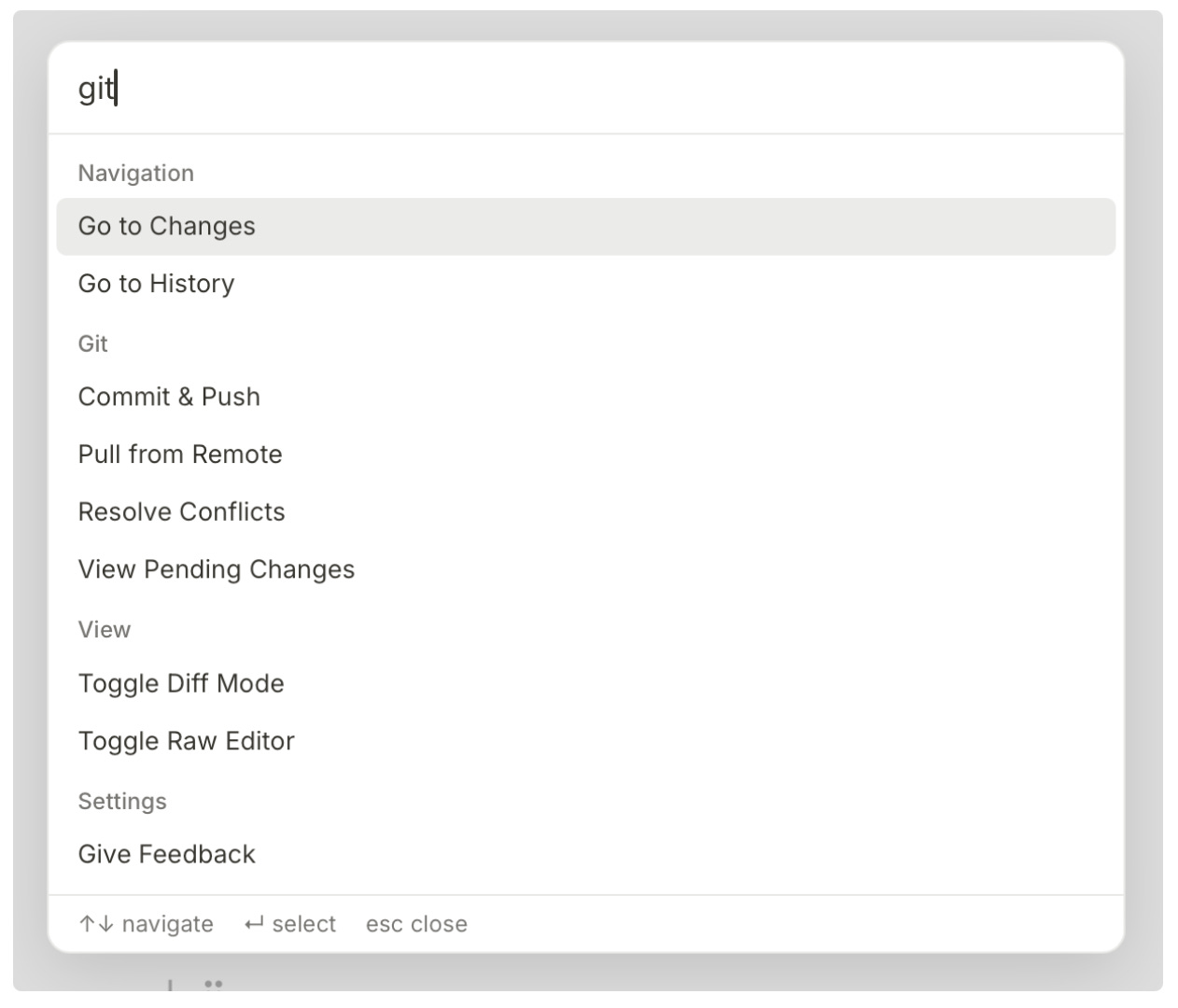
A lot of actions also have a fall back or a quick way to do them via the command palette, which you can open with cmd+K
You can really do almost everything with it, including navigating to sections, creating new notes of a certain type, or perform routine actions.
You don’t even need to find the exact keywords — the palette is smart enough to match a lot of commands semantically:
🔬 What you will find in the repo
I will use this repo as a living artifact of how I do AI coding, for you to inspect at any time.
I have written exactly zero lines of code, out of the ~100K, and read very few of them. I am neither proud nor ashamed by it: it is what it is, and I would have never been able to build it otherwise.
Some interesting things that I haven’t seen too much elsewhere:
The Architecture, Abstractions, and Getting Started docs — they have some overlap, but overall I feel they do a good job at capturing what the tech is about.
The collection of ADRs — this is super useful, both for human review, and for AI to pick up on past decisions and what exists.
The Vision doc — this is not super updated, but it is still useful to guide AI when we brainstorm new features.
Overall, this is a lot of context for the AI to inspect when you want it to do some “creative” task, like creating specs for new features, or making non-trivial tech choices, and dramatically increases the chances for it to get things right.
As of today I still review the ADRs and the changes to the main docs, but I find that AI gets these right >90% of the time.
➡️ Next Steps
If you download and install Tolaria, you will get the option of cloning a getting started vault that has examples and instructions. There is also a Feedback button in the status bar (bottom right) that gets you to Github issues, if you want to report anything.
Also feel free to reply to this email if you have any questions or just to let me know your thoughts! Please do! It’s been a ton of work and I absolutely want to know what you think about it 😄
And that’s it for today! I wish you a great week
Sincerely 👋
Luca
Thank you for sharing this! It would be helpful if you could expand more on the differentiation with Obsidian. To my initial reading, most of the features you mention seem to be similar to well-established Obsidian patterns. For example, types, while not a native concept in Obsidian per-se, are often implemented by users using a "category" property (or something similar), and views seem quite similar to Obsidian bases and/or dataview. Git integration, tho dependent on a plugin, is also quite mature on Obsidian. I am not trying to diminish your efforts; I very much appreciate that Tolaria is open source (which Obsidian is not), and I am excited to see new PKMs. It would just be helpful to understand better your differentiation, since Obsidian seems to have become a somewhat dominant player in this space.
builds and runs on Linux :-)